Tracks
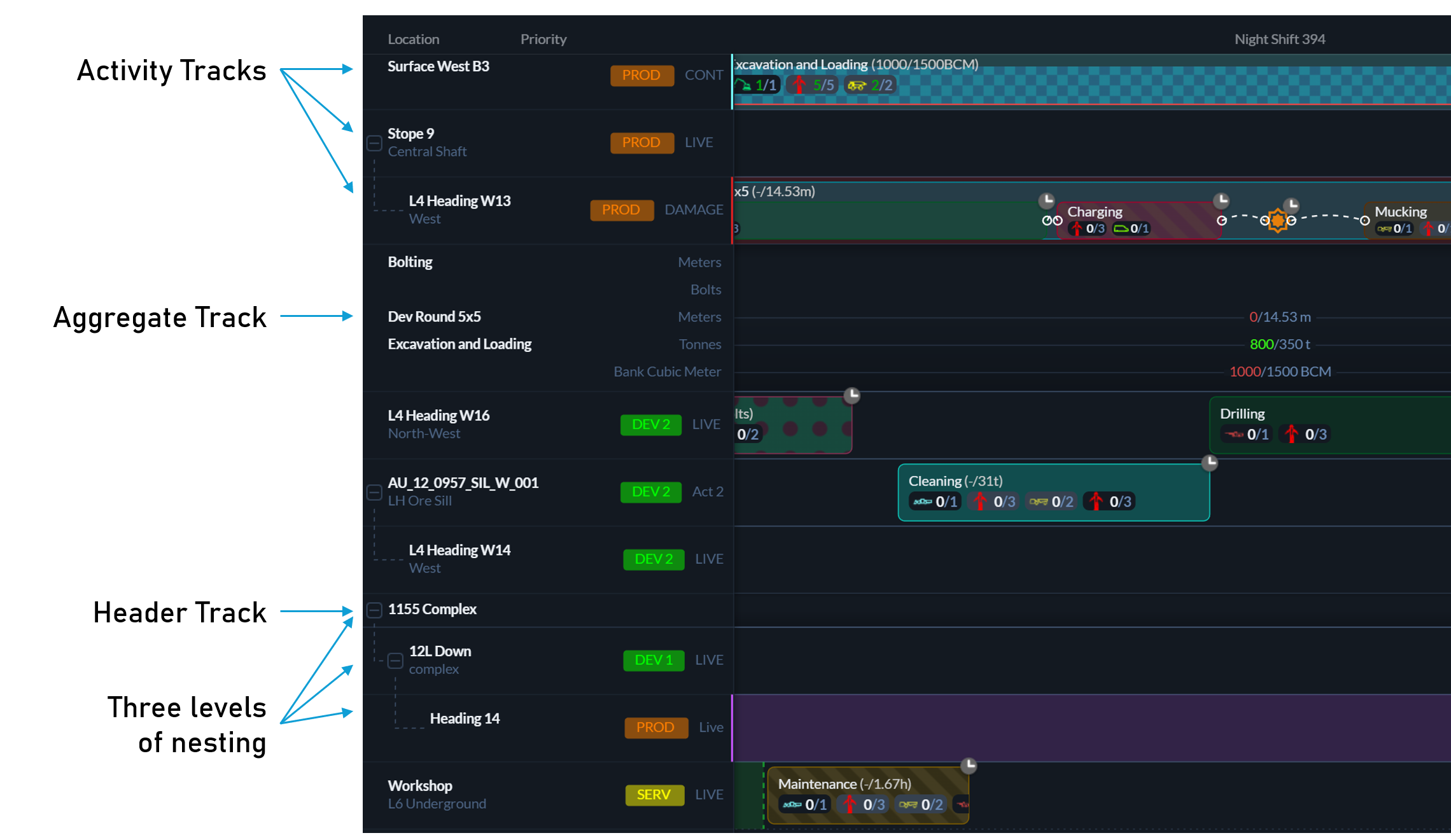
The timeline view of a schedule is organised into tracks. Tracks are the horizontal swimlanes that contain tasks and events and provide structure to the schedule.

The most common type is an activity track, which represents work performed at a specific location and contains tasks and events. In addition, Hivekit supports header tracks, which act as visual separators and labels, and aggregate tracks, which summarise metrics across multiple tracks.
Creating tracks
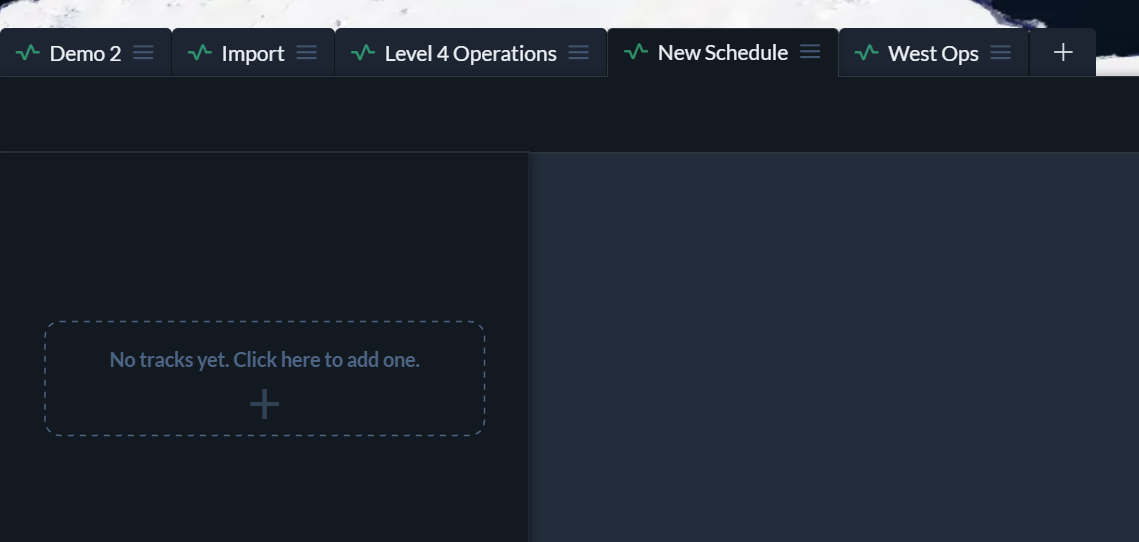
When you create a new schedule, the sidebar initially contains a single button for adding the first track.
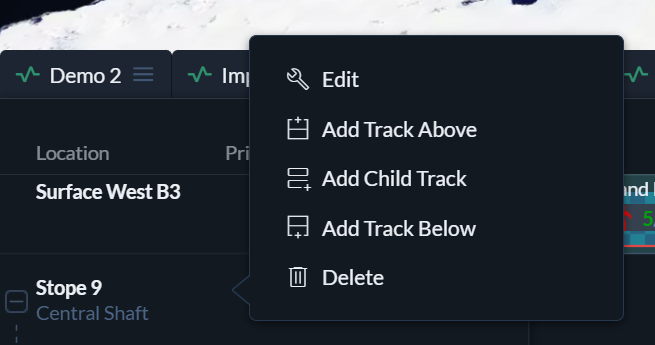
Once at least one track exists, additional tracks can be added by clicking an existing track and choosing Add Track Above, Add Track Below, or Add Child Track.
Editing tracks
To edit a track, click its header in the sidebar and select Edit. This opens the track configuration panel.
Deleting tracks
To delete a track, click its header in the sidebar and select Delete. If the track has child tracks, they will be deleted as well, along with any tasks they contain. If you want to preserve the child tracks, move them out of the hierarchy before deleting the parent track.
Track hierarchy
Tracks can be arranged into hierarchical structures. This is useful for representing real-world hierarchies such as Complex → Level → Heading in a mine, or City → District → Zone in urban operations.
Hierarchy can be changed by dragging and dropping tracks. Dropping a track above or below another track places it at the same level. Dropping it onto the middle of another track makes it a child of that track. The parent can also be set explicitly in the track’s edit panel, or cleared to make the track a top-level entry.
Activity tracks
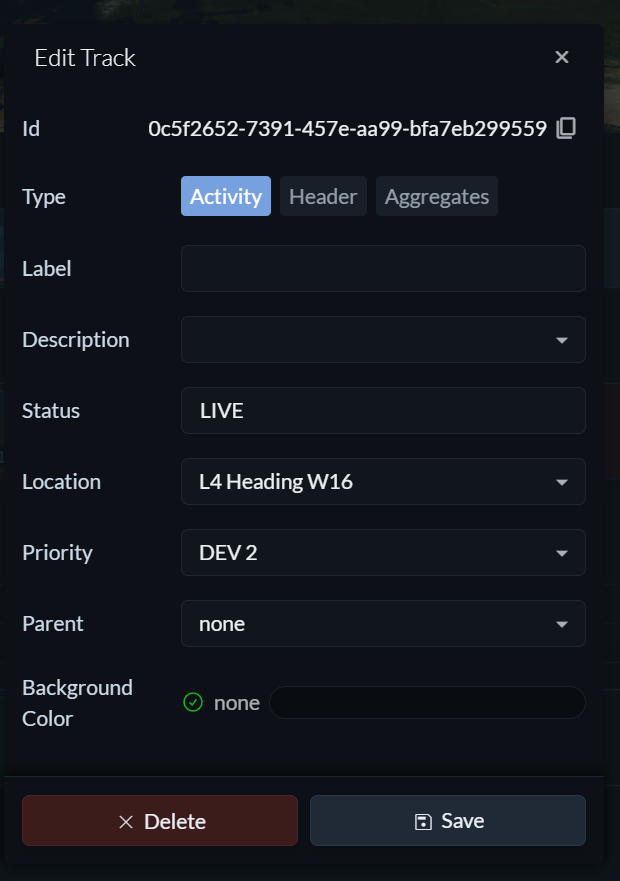
Activity tracks are the standard tracks used to schedule work. They contain tasks and events and are typically associated with a location.
Activity tracks have the following configuration options:
-
Label
By default, the track uses the label of the associated location. This can be overridden with a custom label. -
Description
By default, the description is taken from the selected location. Alternatively, you can choose another location field or provide a custom description. -
Status
A free-text field that can be used for filtering and sorting. It can be left empty if not needed. -
Priority
One of the priorities defined in the priority settings. Tracks can be filtered and sorted by priority. -
Parent
The parent track in the hierarchy. This can also be set via drag and drop. Select None to make the track a top-level track. -
Background colour
A colour used as the background for the track to make it visually distinct.
Header tracks
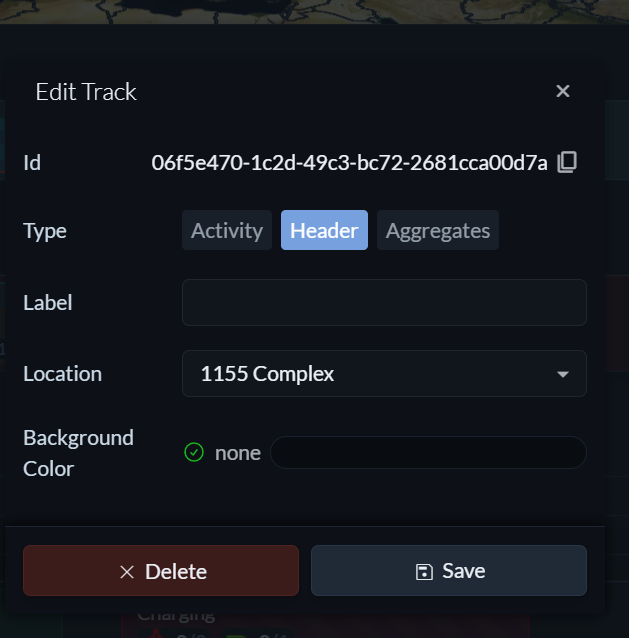
Header tracks are visually distinct and act as headings that group other tracks together. They can optionally be linked to a location or simply use a label. Header tracks cannot contain tasks or events, but they can have child tracks.
Aggregate tracks
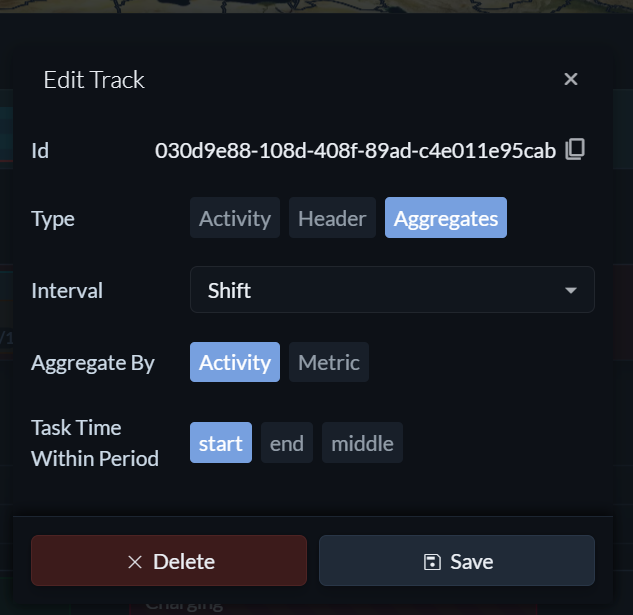
Aggregate tracks summarise metrics from the tracks above them. Aggregation includes all tracks above the aggregate track until another aggregate track is encountered or the top of the schedule is reached.
Aggregate tracks are useful for understanding whether combined goals across multiple locations or workstreams have been met during a shift or over a longer period.
Aggregate tracks have the following configuration options:
-
Interval
The time window over which metrics are aggregated, ranging from a single shift up to a week. -
Aggregate by activity or metric
Multiple activities may share the same metric, such as Tons Hauled. When aggregating by activity, the aggregate track shows separate totals per activity. When aggregating by metric, values are combined into a single total across all activities. -
Task time within period
Determines how tasks are included relative to the aggregation period.
Start includes tasks that start within the period, Middle includes tasks whose midpoint overlaps the period, and End includes tasks that end within the period.