Templates
Templates provide a convenient way to reuse recurring combinations of tasks and events. If you regularly schedule the same operational sequence—such as load → transport → unload → return or drill → charge → blast → muck → services—you can capture it as a template and apply it repeatedly to your schedule like a stamp.
Templates preserve the full structure of the selected tasks and events. This includes parent–child relationships, task connections (previous and next), and, if desired, resource assignments and metrics. Templates can also span multiple tracks and locations, making them suitable for modelling complex workstreams.
Creating a template
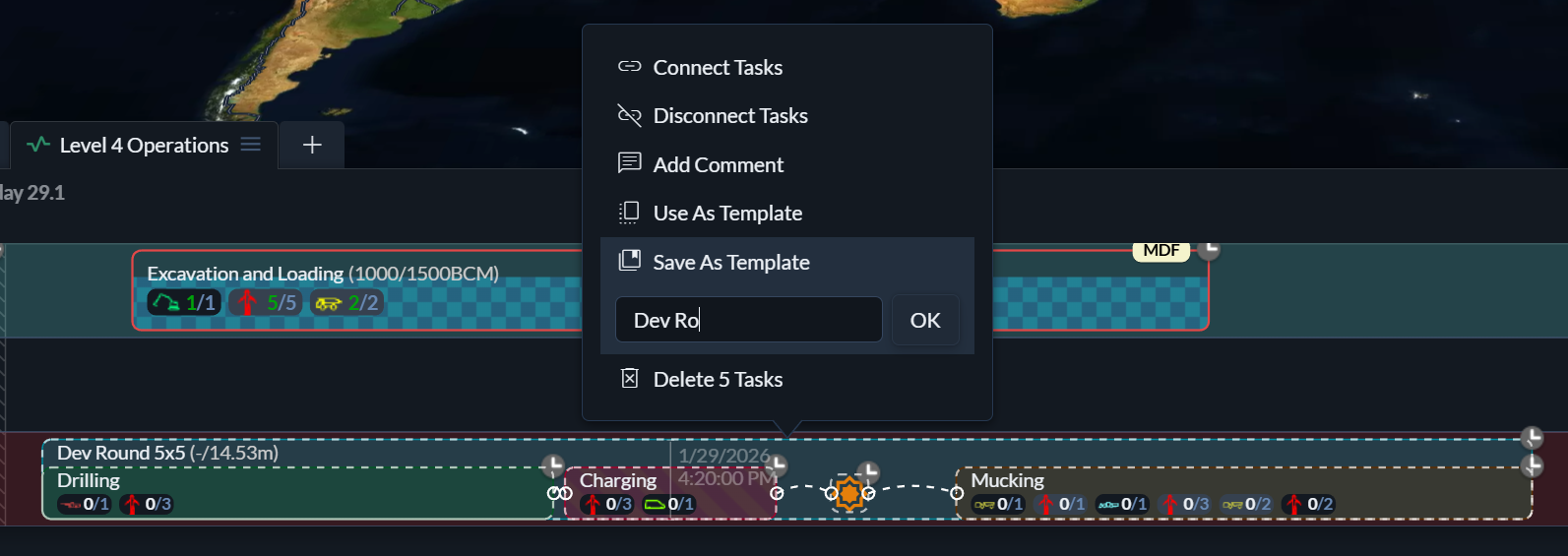
To create a template, select one or more tasks and events in the schedule and choose Save as Template. Provide a name for the template and confirm by clicking OK or pressing Enter.
Using a template
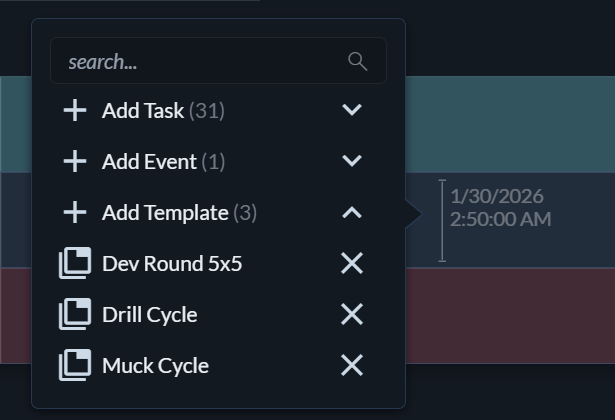
To apply a template, click on an empty area of an activity track in the schedule, select Add Template, and choose one of your saved templates. Hivekit displays a preview outline showing where the tasks and events will be placed.

You can then stamp the template onto the schedule once or multiple times. When you are finished placing templates, right-click or press Escape to exit template mode.
Creating a temporary template
If you do not want to store a template for later reuse, you can select Use as Template instead. This turns the current selection into a temporary template that can be applied immediately but is not saved.
Deleting a template
To delete an existing template, open the Add Template menu and click the × icon next to the template you want to remove.