Resourcing
When configuring an activity, you define which types of resources are required to execute it. These can include people, vehicles, machines, and consumables. Later, when scheduling a concrete task, you assign the specific people, vehicles, or other assets that will perform the work.
Assigned resources influence many aspects of the system, including task line-ups, metric capture, individual schedules in the mobile app, and downstream reporting and analysis.
Creating resources
Resources in Hivekit are regular objects. The same entity is referred to as an object in the context of asset tracking and data collection, and as a resource in the context of planning and scheduling. Functionally, they are identical.
To create a resource, follow the standard object creation process described in the object documentation.
Specifying resource dependencies
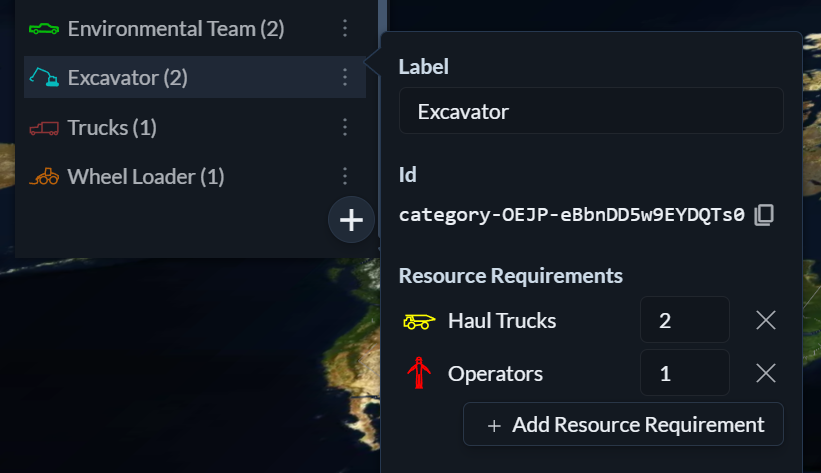
Resources often depend on other resources to function. For example, an excavator requires an operator and haul trucks to load, and each truck in turn requires a driver.
Hivekit allows you to define these dependencies at the object category level. To do so, open the object menu, click the three horizontal dots next to an object category, and under Resource Requirements specify the types and quantities of other resources that are required.
Hivekit automatically resolves transitive dependencies. This means you only need to define direct dependencies for each category; all indirect dependencies will be inferred automatically.
Configuring resource requirements for activities
The resources required for an activity are defined in the activity configuration. Here, you specify the top-level resource types and quantities needed to perform that activity. Any dependent resources are pulled in automatically based on the category definitions.
Assigning resources
Once a task has been created, its resource requirements and assignments are visible in both the timeline view and the table view. While resources can be assigned in either view, we generally recommend using the table view, as it provides more space and greater visibility into availability and utilisation.
Resourcing in timeline view
 In the timeline view, resource markers are shown directly on the task. Markers with a darker background represent resources that are directly required by the task. Markers with a lighter background represent transitive dependencies that have been pulled in automatically.
Clicking a marker opens the resource assignment menu, where you can assign or change the specific resource.
Resourcing in table view

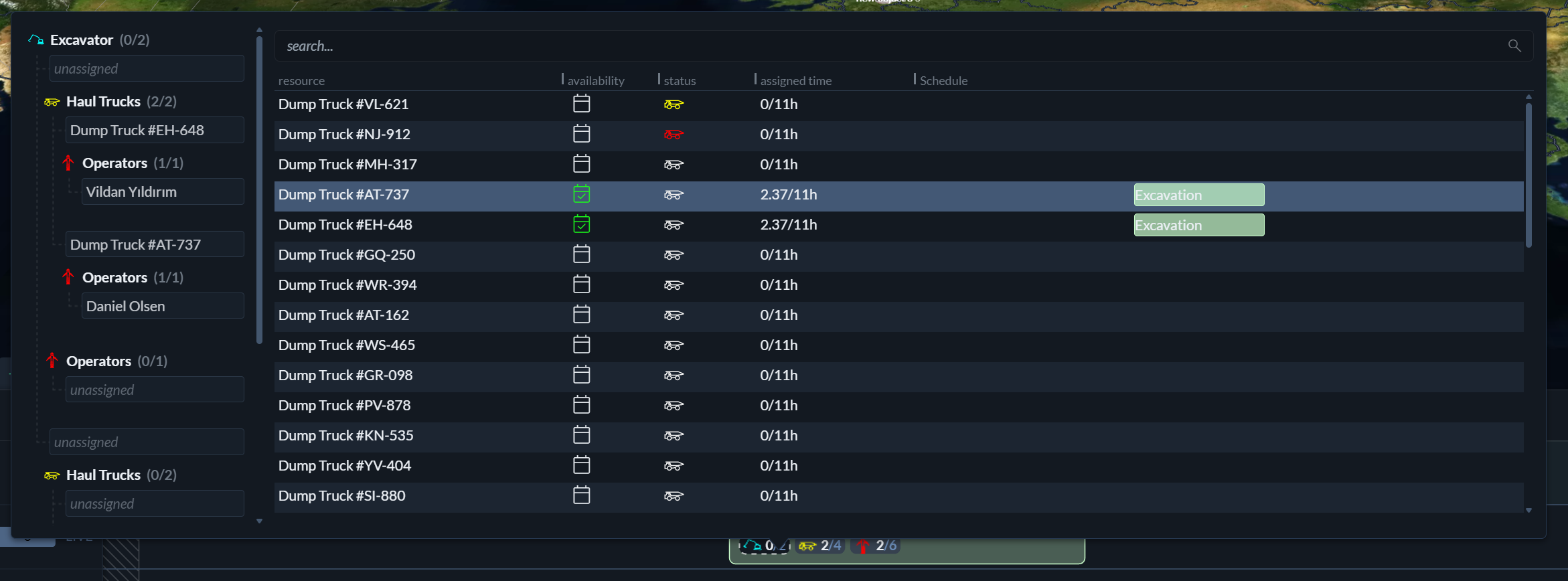
Resourcing is typically more efficient in the table view. On the left side, you see an overview of your fleet, staff, and inventory, grouped by category, along with their current level of assignment.

The percentage shown next to each category represents the utilisation of that category for the selected shift. It is calculated as:
assigned percentage = (assigned hours across all objects / (shift duration in hours * number of available objects in this category)) * 100
When you select a resource category, Hivekit displays the list of available resources in that category along with their current availability. At the same time, all tasks that can accept this resource type are highlighted, making it clear where assignments are possible.
The resource grid
The resource grid is used in both the timeline and table views. It shows all resources in the selected category, their availability and shift schedule, as well as relevant metadata such as supervisors, capacity, or other category-specific attributes.
The grid supports sorting and filtering on all fields, allowing you to quickly identify suitable resources and make assignments efficiently, even in large operations.
The resourcing indicator
In the top-left corner of each task, you will see three indicators. The leftmost indicator shows the current resourcing status of the task, for example 4/6, meaning four out of six required resources have been assigned. This provides a quick visual cue for identifying tasks that are not yet fully resourced.
The table view can also be sorted by resourcing status, making it easy to prioritise incomplete assignments.
How resource assignments are used
Resource assignments are used throughout Hivekit. They form the basis for automatically generated line-ups, which tell each operator which vehicle to drive and which other resources they are working with. Resource assignments are also reflected when entering performance metrics for specific vehicles on a task and are referenced in several other operational and reporting workflows across the system.