Comments
Comments allow you to add contextual information to a task. They are commonly used to describe the exact work that needs to be performed, highlight hazards or safety considerations, or leave notes for the next crew.
Comment categories
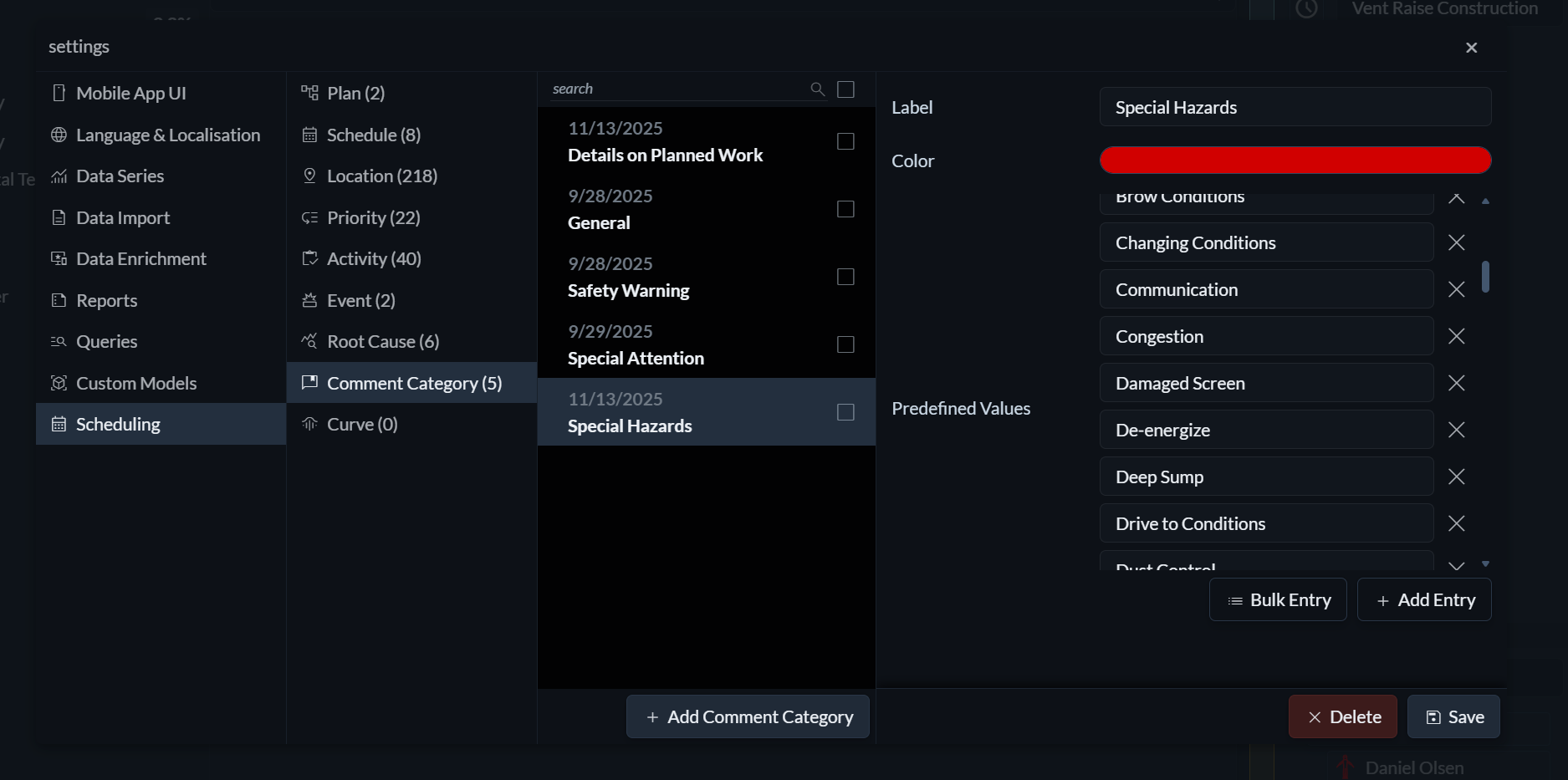
Comments in Hivekit can be organised into categories. To create a comment category, open the Settings menu (the three horizontal lines on the right) and navigate to Scheduling → Comment Category.
For each category, you can define a label, assign a colour for easy visual recognition, and optionally configure a set of predefined values. These predefined values are offered as an auto-suggest dropdown when entering a comment, helping to standardise terminology and speed up data entry.
Adding comments to tasks
Comments can be added to a single task or to multiple tasks at once. In the timeline view, select a task—or select multiple tasks—and choose Add Comment.
When a comment is added to multiple tasks, it remains linked to all of them. Editing or deleting that comment will apply the change consistently across every associated task.
Displaying comments
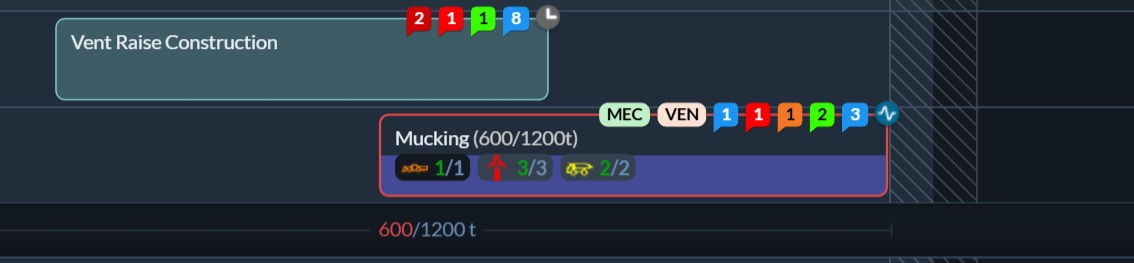
Tasks with comments display a speech bubble icon above the task, coloured according to the comment category and showing the number of comments in that category. Hovering over the icon reveals the comments, and clicking it opens the full comment history.
Comments are also visible in the table view, in line-ups, and in print views, ensuring they remain accessible wherever the task is reviewed.
Editing and deleting comments
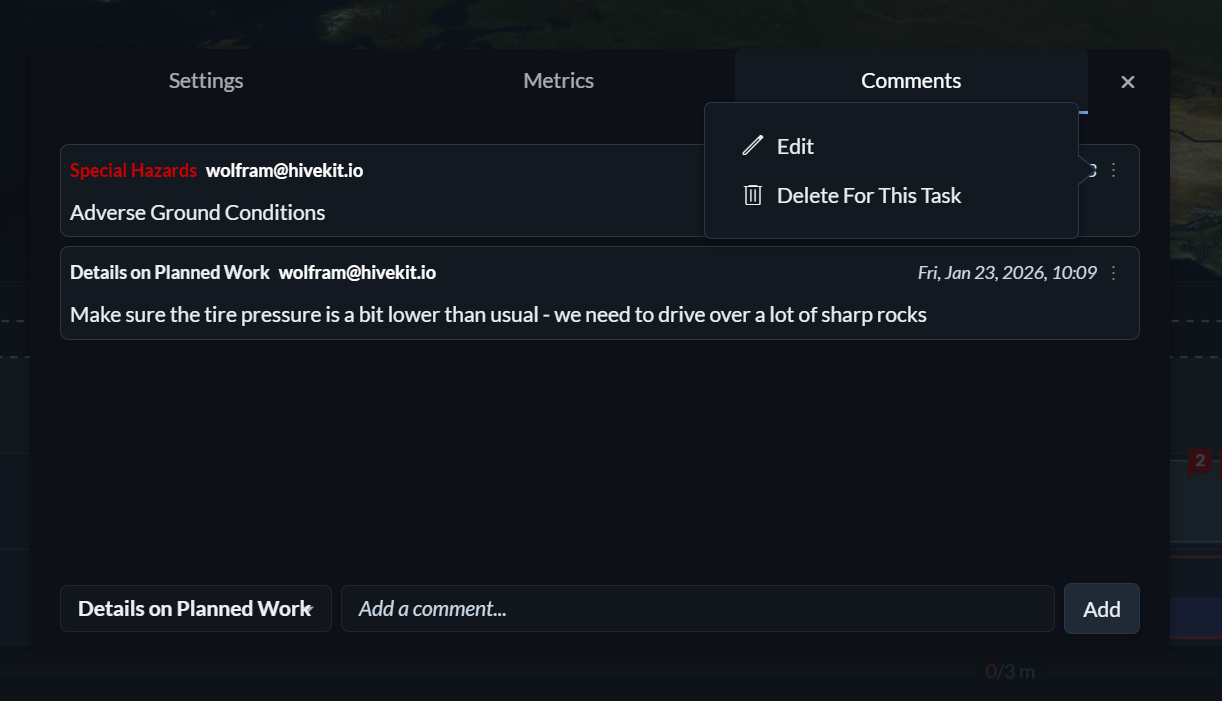
To edit or delete an existing comment, open the full comment history and click the three dots in the top-right corner of the comment.