Activities
Activities define the types of work that can be scheduled in Hivekit, such as “Loading”, “Hauling”, “Electrical Installation”, or “Delivery Pickup”. Each activity describes what kind of work is being performed and encapsulates the operational requirements and performance measurements associated with it. This includes required people, vehicles, and other resources, as well as the key performance indicators used to measure success.
What is the difference between an activity and a task?
An activity is a reusable template, while a task is a specific instance of that activity placed on a schedule.
For example, “Load Material” would be defined once as an activity. In this definition, you would specify that it requires one front loader and two haul trucks, and that each execution should record metrics such as loaded tonnage and truck idle time. When material needs to be loaded at a specific time and location, you create a task based on this activity. In the task, you define the concrete details: the source location, the expected tonnage, and the specific loader and trucks assigned to perform the work.
This separation allows you to standardise how work is defined while retaining full flexibility when scheduling and executing it.
Creating and editing activities
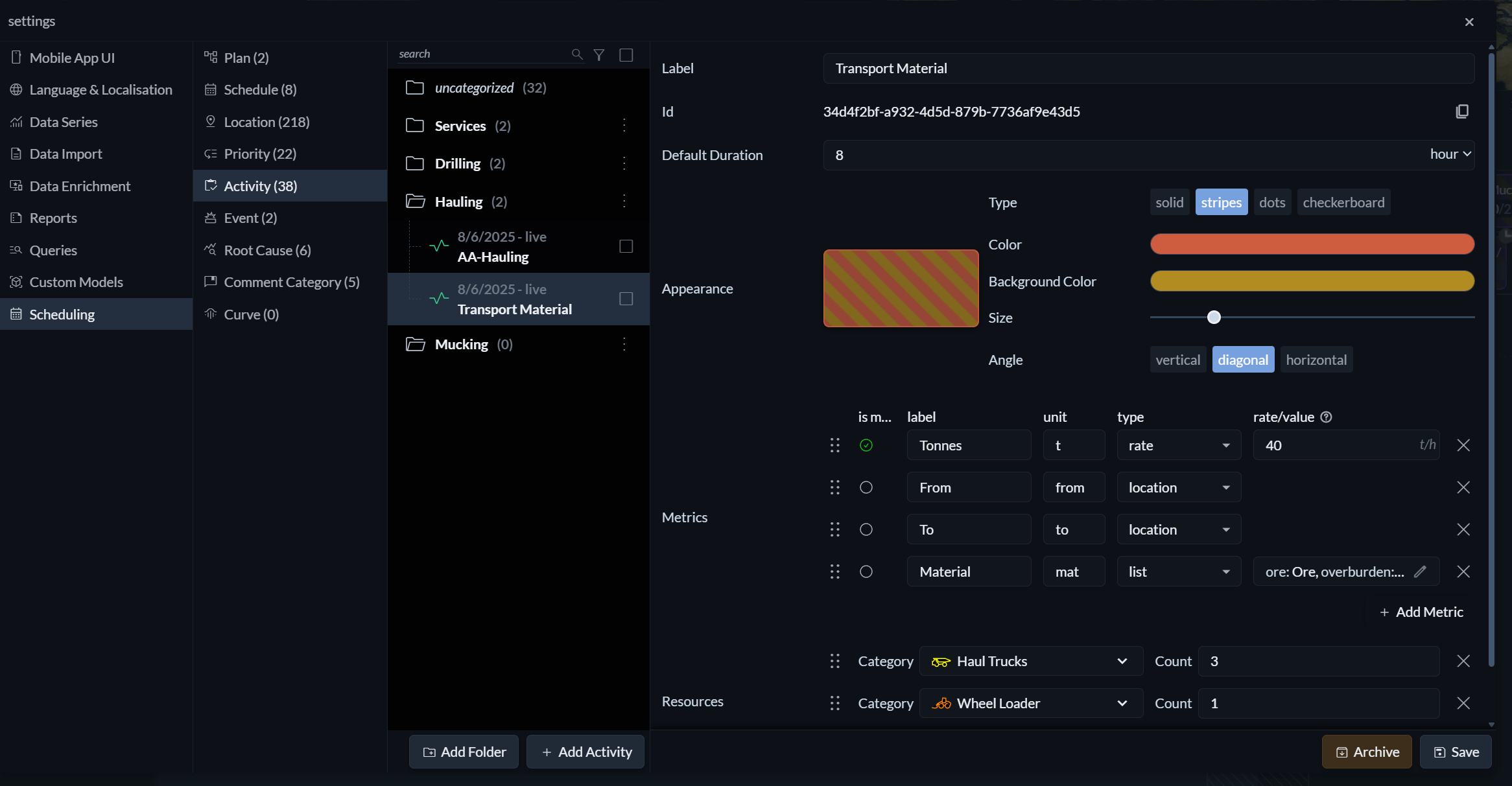
To create or edit an activity, open the Settings menu (the three horizontal lines on the right), then select Scheduling and Activity.
You can also edit an existing activity directly from the scheduling workflow. Clicking the activity field in the Task Settings window or the activity label in the schedule’s table view will open the corresponding activity for editing.
Folders
Activities can be organised into folders, which becomes increasingly important as the number of activities grows. Folders help structure your activity library and make it easier to find the right activity when creating tasks.
Folders are shown both in the activity management sidebar and in the “Add Task” menu within schedules, ensuring a consistent experience across the system.
Appearance

Activities should be easy to recognise at a glance in the schedule view. The appearance settings allow you to assign a colour and, optionally, a pattern such as stripes, dots, or checkerboard fills. Patterns are particularly useful for improving readability and ensuring activities remain distinguishable for colour-blind users.
Metrics
Activities define which metrics are captured when work is executed. These can include key performance indicators as well as additional contextual or operational data.
Metrics in Hivekit are a powerful and flexible concept, and their full capabilities go beyond the scope of this section. For a deeper explanation, please refer to Metrics and Metric Groups.
Resources
For each activity, you define which types and quantities of resources are required, such as people, vehicles, equipment, or consumables. Resources can depend on other resources—for example, a vehicle may require a driver, or an excavator may require haul trucks to operate effectively.
These dependencies are defined at the resource level. When configuring an activity, you only need to specify the top-level resources. Hivekit automatically resolves and includes all required dependent resources when tasks are created and assigned.