People & Roles
Open Settings → People to manage your tenant's people directory, operational roles and authentication settings. This section is available to tenant administrators. People and roles belong to the tenant, so switching map realms does not change the directory.
You can add someone to the directory without giving them a login. Their profile describes their work and reporting relationships; Platform access controls whether they can sign in. Operational roles such as Operator or Supervisor do not grant application permissions or administrator rights.
Create a role
- Open Settings → People → Roles and choose Add Role.
- Enter a Label, such as Operator, and save.
- Select the role when editing a person's profile.
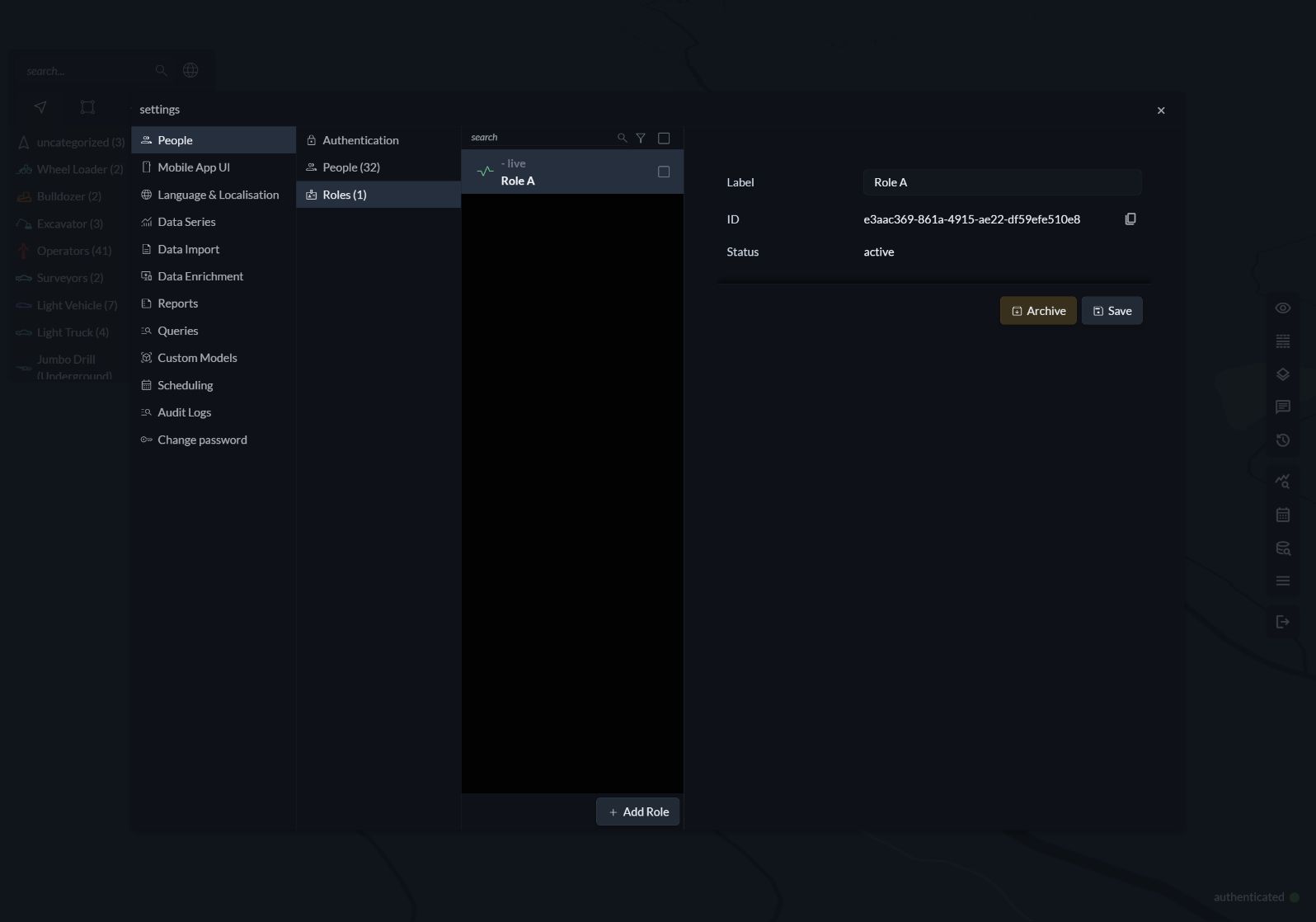
Roles can be archived and reactivated from the list. An archived role remains visible on a person who already has it, but is excluded from the choices for new assignments.
Add or edit a person
- Open Settings → People → People and choose Add Person, or select an existing person.
- Enter their First name, Last name and, if needed, Email.
- Select their Role and Reports to person.
- Optionally select an Object realm and Linked object.
- Save the profile before configuring platform access.
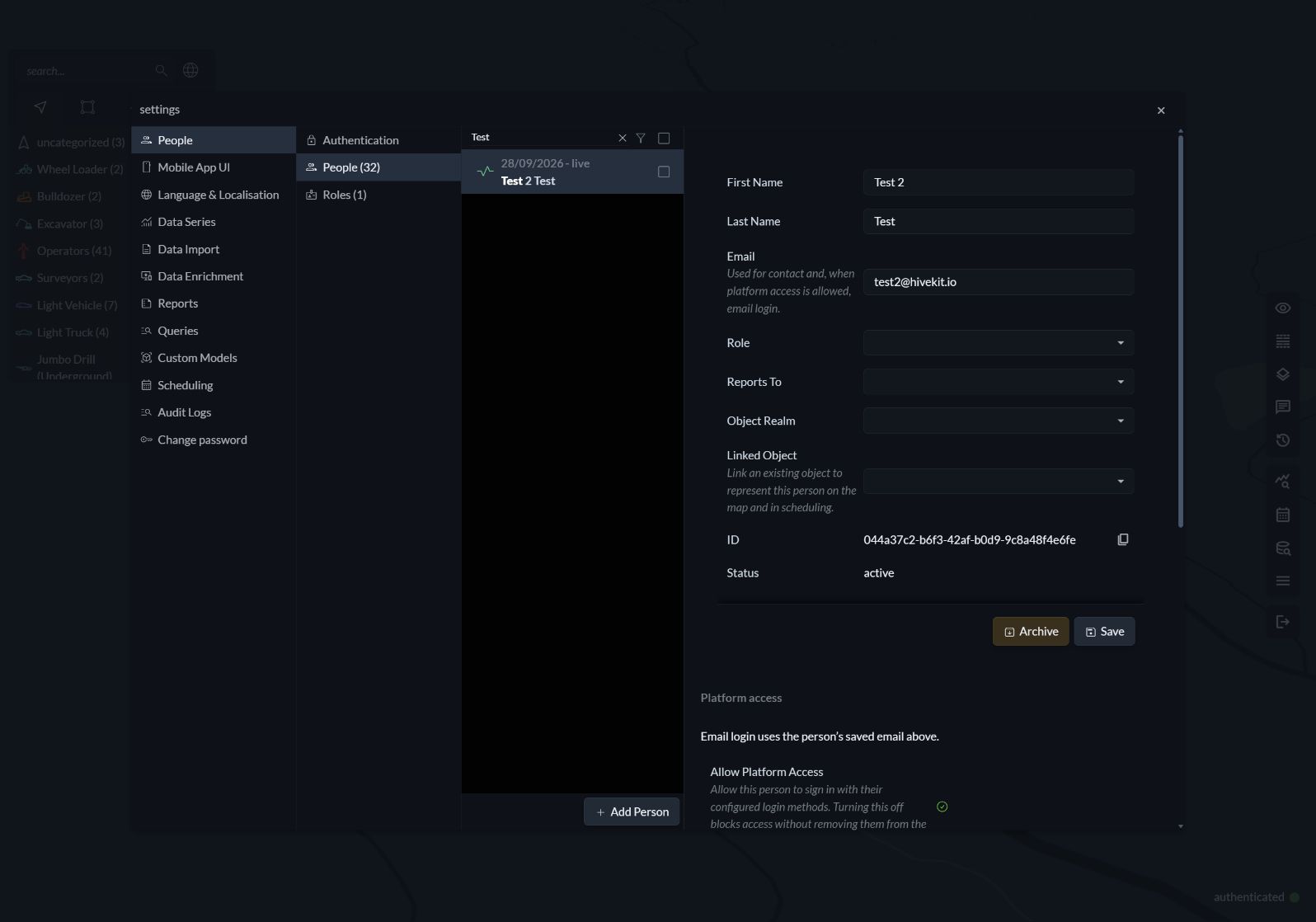
Each person has one email address for both contact and email login. Addresses are trimmed and stored in lowercase, and an address can belong to only one person within a tenant. Saving an email alone does not enable sign-in. Directory-only emails are reserved, so email self-signup cannot bypass disabled platform access.
The Reports to field defines the reporting relationship. A person cannot report to themselves or be part of a reporting cycle.
Link a person to an object
Choose the realm first, then an existing object in that realm. The link stores both the realm ID and object ID, and each object can be linked to at most one person. Changing the object realm clears the current object selection.
The linked object represents the person on the map and in scheduling. Resources remain regular Hivekit objects; see Resourcing for task assignments. Creating a directory entry does not create an object or replace mobile association-token workflows.
Grant platform access
After saving the profile, use the Platform access section:
- Enable Allow platform access.
- Select Email verification code, Email and password, or both. These choices require a saved email and the corresponding method to be enabled in the Login policy.
- Enable Tenant administrator if this person should manage people, roles and authentication settings.
- Set Application permissions (JSON) and choose Save access settings.
- Choose Send invitation to help the person sign in or set their initial password.
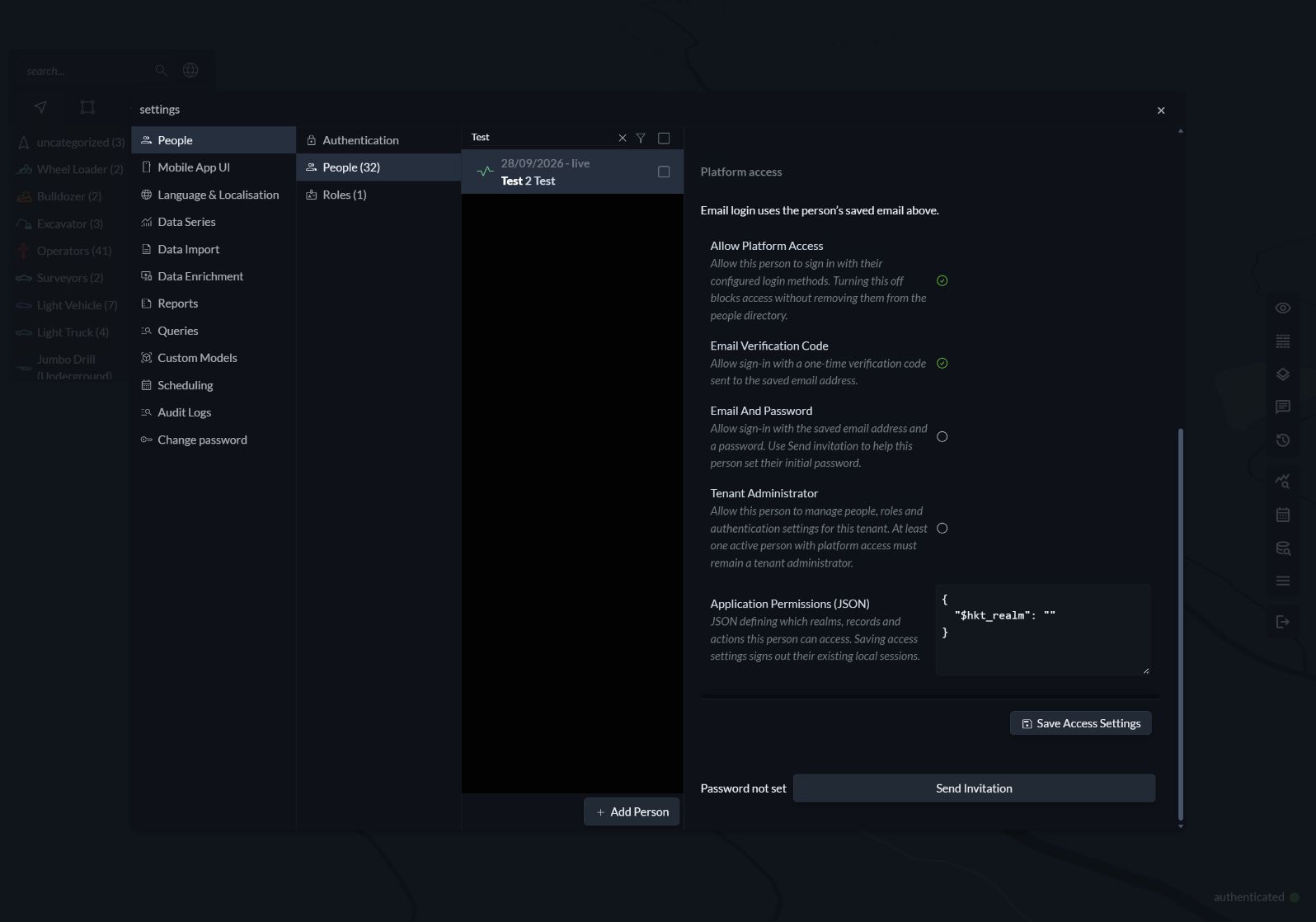
The profile and access screenshots show a local test person. Their operational role, platform permissions and administrator rights are configured independently.
Permissions specify the realms, records and actions the person can access. They must explicitly include $hkt_realm. For example, this grants read access to records in mine-west without realm-management permissions:
{
  "$hkt_realm": "",
  "mine-west": {
    "*": "R"
  }
}
See Permissions for patterns and action letters. The tenant-administrator flag is separate from this permission map and the person's operational role.
Profile, access and SSO identity changes have separate save actions. Saving access settings signs out the person's existing local sessions, including your own session if you edit your own access.
Invitations and password setup
For password-enabled access, Send invitation emails a one-use link where the person sets their password. For code-only access, the invitation links to the ordinary email-code login screen. The Password set or Password not set indicator shows whether credentials already exist; enabling the password method does not itself create a password.
When an enabled email-code user without a password is switched to password sign-in, saving access settings sends a password setup email. If email delivery fails, that access change is rolled back. Initial access provisioning still uses Send invitation. Re-enabling password login retains an existing password.
See Signing in & Passwords for accepting invitations, recovery and password changes.
Change an email or suspend access
Save a changed email in the person's profile. Changing an established login email invalidates outstanding challenges and local sessions and requires verification of the new address. The person keeps their ID and existing password credentials. An established login address cannot be cleared; turn off Allow platform access to block sign-in.
Archiving a person also blocks managed login access. Use the list's archive/reactivate action to change their status while retaining their profile and relationships. After reactivation, review their platform access and login methods.
At least one active person with platform access must remain a tenant administrator. The server rejects demoting, disabling or archiving the last such administrator. Assign another active administrator before making that change; rejected updates leave existing access and sessions intact.
Link an SSO identity
Once an administrator has configured an SSO provider, select it in the person's access section, enter the stable Provider subject, enable the identity, and choose Save SSO identity. Use New SSO identity to add another binding, or Edit to enable or disable an existing one.
The provider subject comes from the identity system. Matching email addresses do not automatically link SSO accounts to directory entries. The person also needs enabled platform access, an active profile and an enabled provider permitted by the tenant login policy.