Signing in & Passwords
Enter your email on the login screen and continue. Hivekit offers the methods allowed by your administrator. If a password is configured and permitted, password entry opens by default. When email codes are also allowed, Send email code appears below Log In as an alternative.
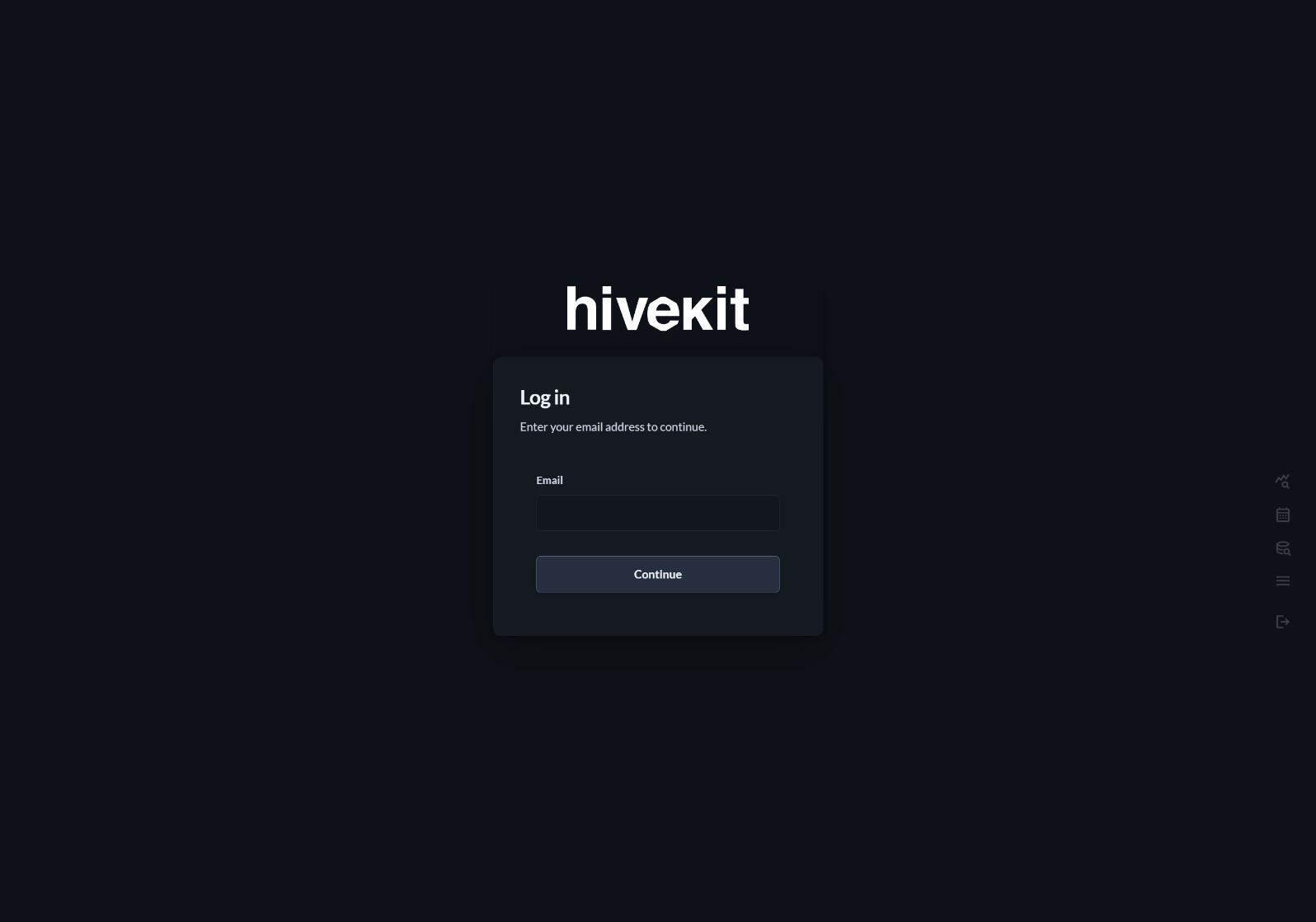
Sign in with an email code
Choose Send email code, check your inbox and enter the verification code in the same browser where you started login. Codes expire and have a limited number of attempts. Use Resend email code to request a fresh code when needed.
If your organization allows email self-signup, verifying an eligible new address creates a person with the tenant's default permissions. An existing directory entry with platform access disabled cannot use self-signup to gain access.
Accept an invitation or set up a password
- Follow the link in your invitation or password setup email.
- Check the account email shown on the form.
- Enter and repeat a password of at least 12 characters.
- Choose Set password, then sign in with your email and new password.
Email-code-only invitations open the ordinary login screen instead. Your administrator must enable password access and send an invitation or setup link before you can create an initial password.
Password links expire and work only once. An expired, unused link may offer Send a new link. If the link has been used or revoked, request password recovery or contact your administrator for a new invitation. Cancel returns to login without setting a password.
Recover a forgotten password
Choose Forgot password?, enter your email and choose Send reset link. The screen shows the same confirmation whether or not the account supports recovery. If eligible, you receive a one-use password reset link.
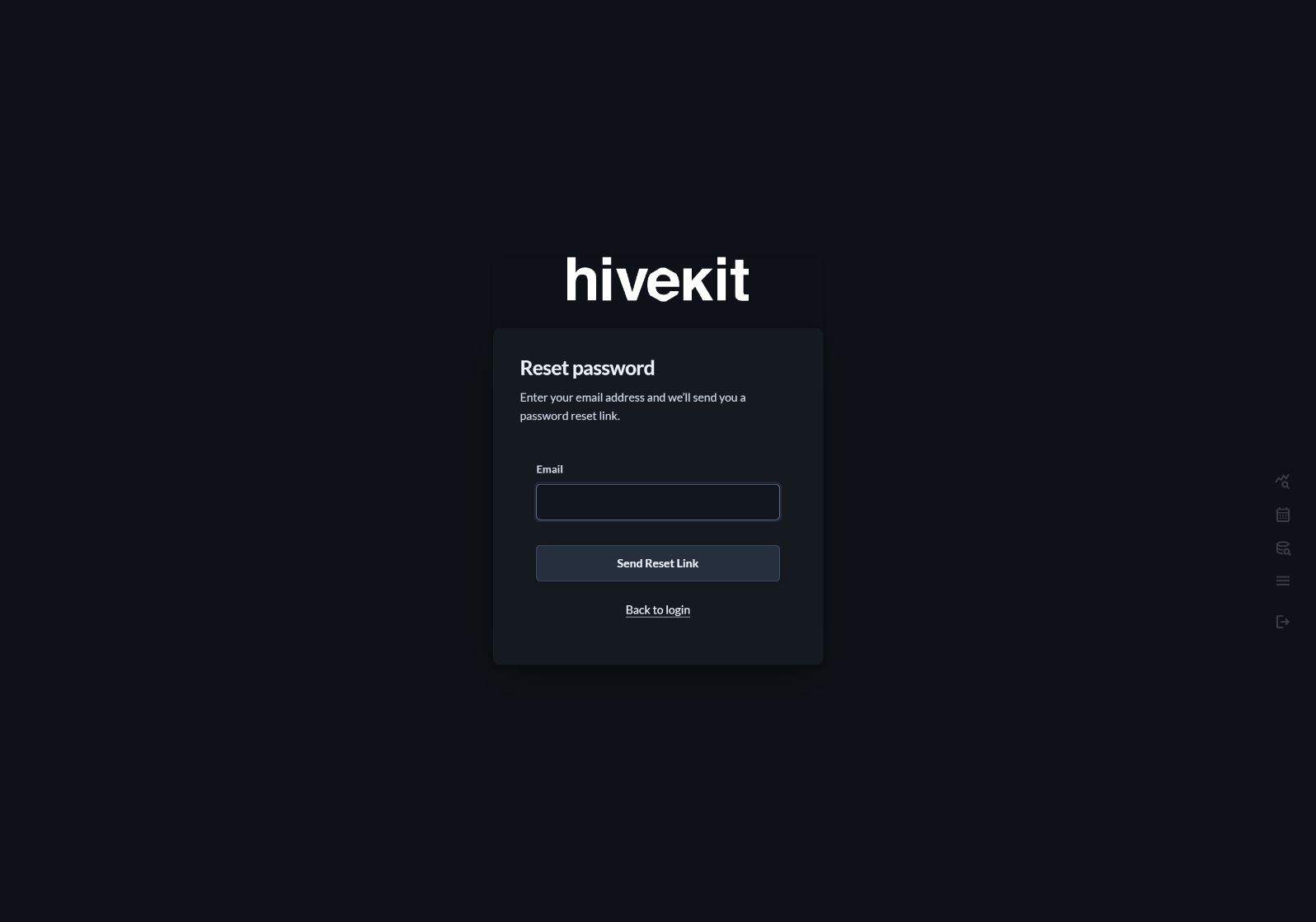
Follow the link, enter and repeat your new password, and choose Reset password. Hivekit returns to login with your email prefilled. Resetting your password signs out existing local sessions.
Change your password
While signed in, open Settings → Change password from the More menu. Enter your current password and your new password twice, then save. You will need to sign in again; the change revokes existing local sessions.
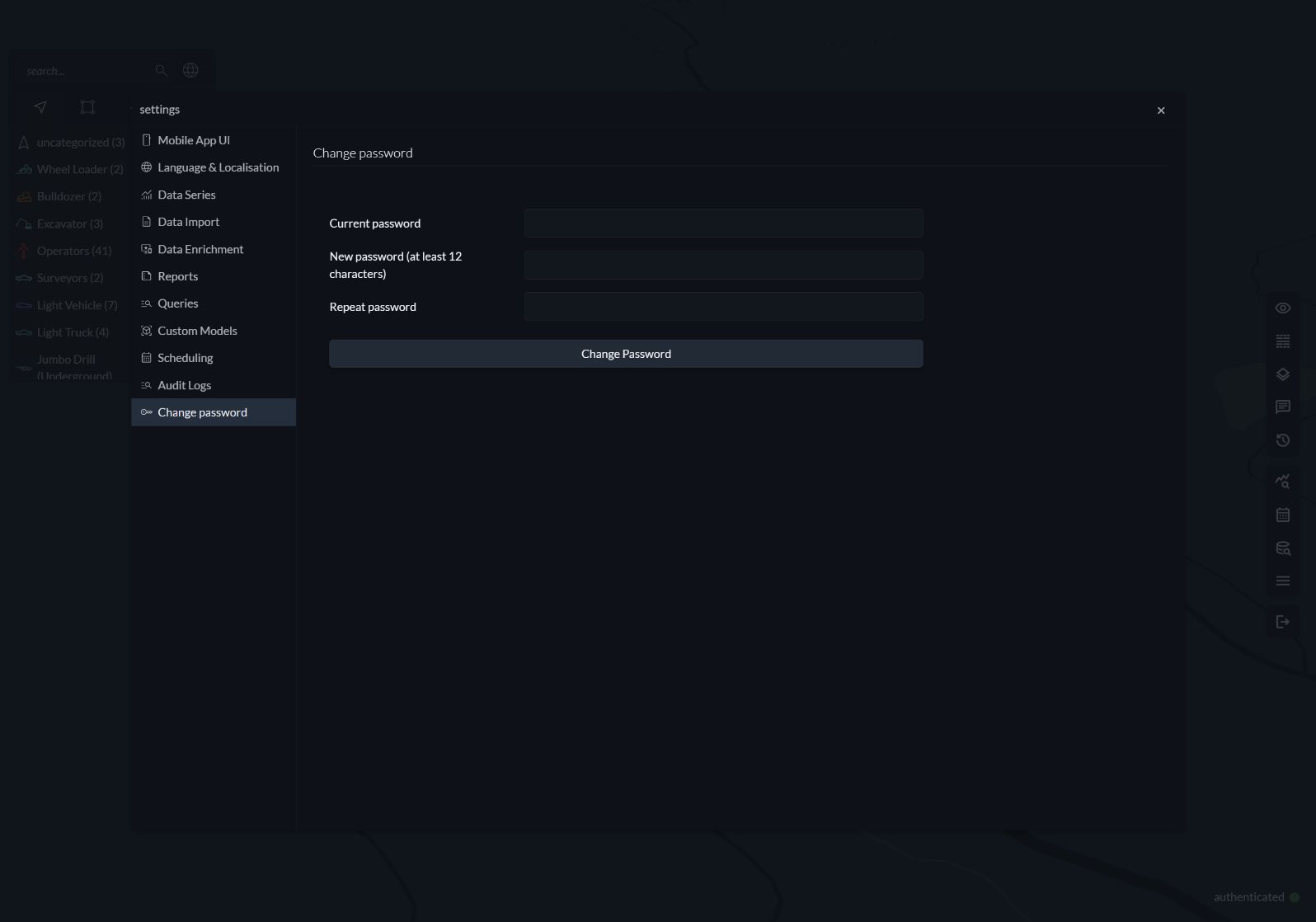
For SSO accounts, manage your password with your organization's identity provider. Login email, permitted methods and access settings are managed by tenant administrators under Settings → People.
If you cannot sign in
If no email method is available, contact your administrator or use your organization's SSO entry point. The administrator can check the saved email, active status, platform access, account methods, tenant login policy and domain restrictions. Repeated failed attempts are rate limited; wait before trying again.
An administrator changing your email or access settings can also end your local session. Sign in again with the current account details.