Authentication Settings
Tenant administrators configure sign-in under Settings → People → Authentication. Select Login policy to edit tenant-wide rules, or select a provider to edit an SSO binding.
Login policy
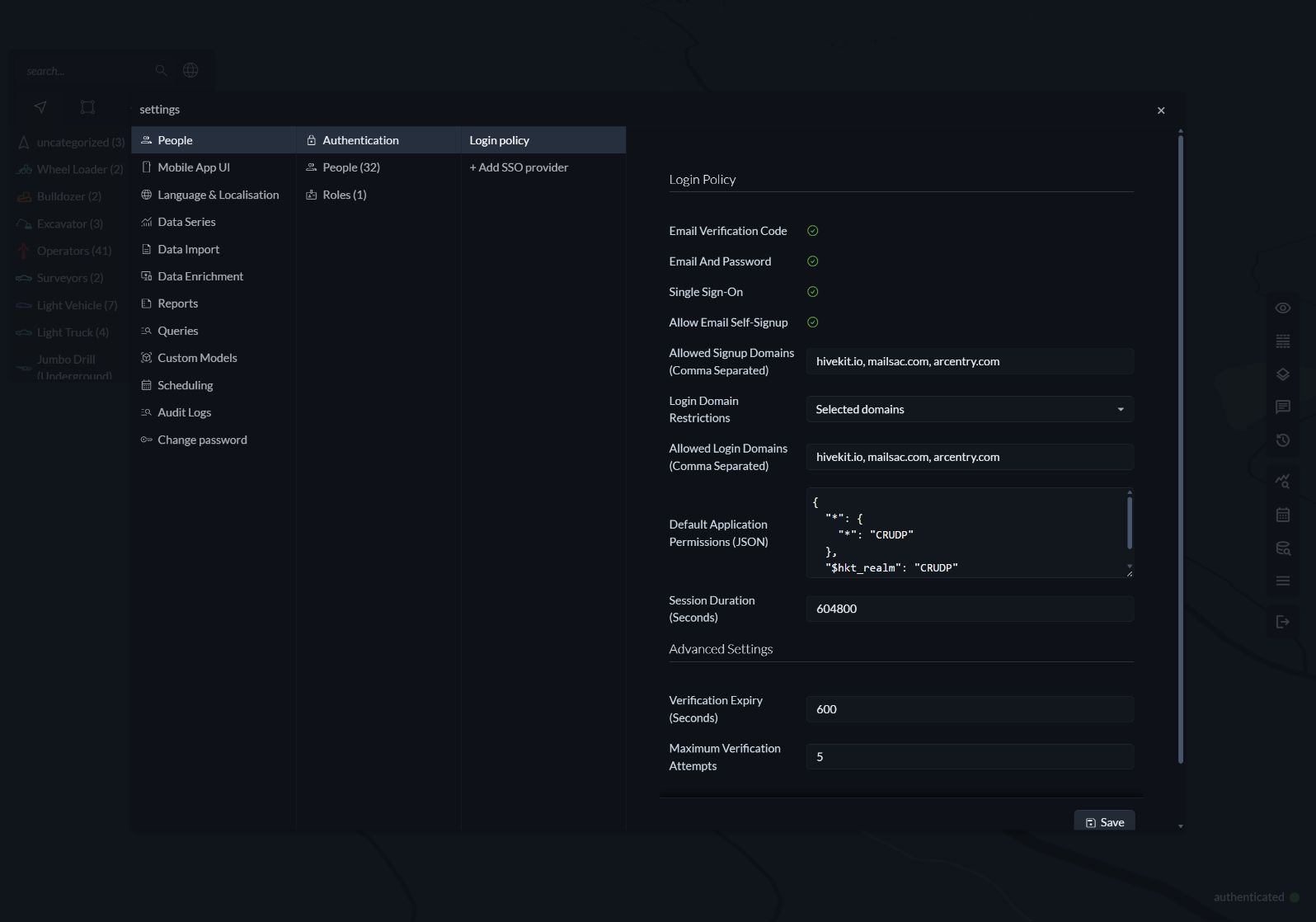
The screenshot shows one local deployment's policy. Choose domains, permissions and durations for your tenant; these values are not fixed defaults.
| Setting | Effect |
|---|---|
| Email verification code | Allows one-time codes sent to a person's saved email. |
| Email and password | Allows local passwords after invitation or password setup. |
| Single sign-on | Allows external user-token authentication. |
| Allow email self-signup | Allows new people to join through email-code verification from explicitly allowed signup domains. |
| Allowed signup domains | Comma-separated domains such as example.com. Self-signup requires a matching domain and enabled email codes. |
| Login domain restrictions | Any domain allows existing email identities from any domain; Selected domains permits only the listed domains; No email login blocks all email login. |
| Default application permissions (JSON) | Initial permissions for newly provisioned access. Include $hkt_realm explicitly; see Permissions. |
| Session duration (seconds) | Local session lifetime, from 60 to 31,536,000 seconds. |
| Verification expiry (seconds) | Code and invitation/setup/reset link lifetime, from 60 to 3,600 seconds. |
| Maximum verification attempts | Allowed attempts per challenge, from 1 to 20. |
Save the policy to apply it. Email login requires the method to be enabled both in this policy and on the person's account, as well as enabled platform access and an active person. Signup and login domain restrictions both apply to new email signups. Existing directory-only email addresses cannot self-sign up to override disabled access.
Password self-signup is not available. Administrators provision password access and send invitations. Default permissions are initial grants; use each person's access settings to update their current permissions.
SSO providers
Choose Add SSO provider and configure:
| Setting | Description |
|---|---|
| Label | Name shown in provider settings. |
| Provider type | configured_jwt, google or cognito, matching the deployed token validator. |
| Issuer | The token's iss value. |
| Audiences | Comma-separated accepted token audiences. |
| Enabled | Whether this provider can authenticate managed identities. |
| Automatically create people on first SSO login | Creates an independent person on the first accepted token when enabled. Otherwise, an administrator must link a provider subject to an existing person. |
| Permission source | Provider claims uses token permissions; Hivekit access settings uses the person's local permissions. These sources are not automatically combined. |
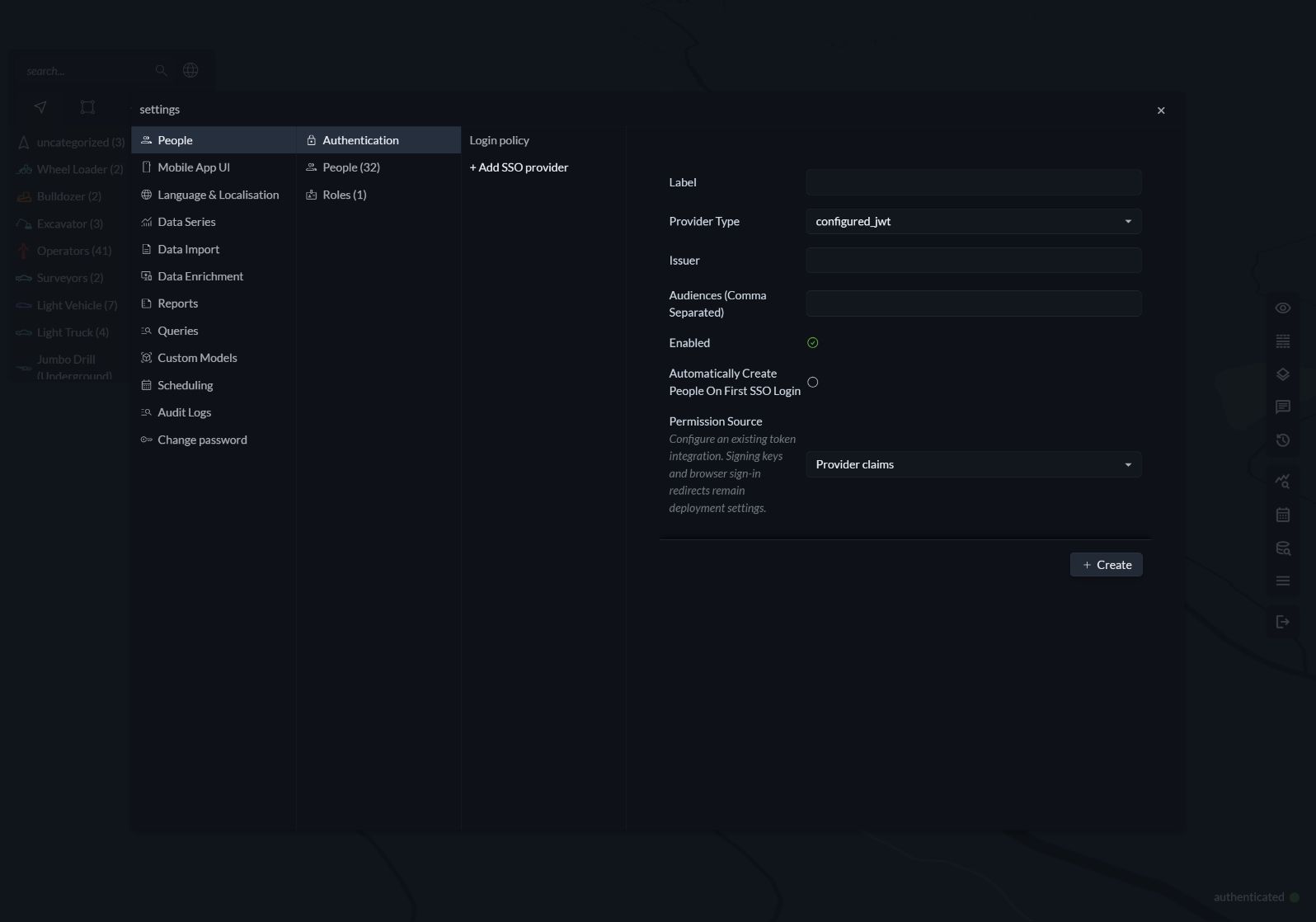
The new-provider form is shown before saving a binding.
Save the provider, then link identities to people if automatic provisioning is off. Automatic provisioning does not match or merge people by email.
These settings bind existing external-token integrations to managed people. Signing keys and service-account settings remain deployment configuration. Browser sign-in redirects, SAML and LDAP integrations are not created here; users continue through the organization's existing SSO entry point. External passwords are managed by the identity provider.
Deployment requirements
Email invitations, password setup and password recovery require a configured mail server and the public frontend URL. See People & Authentication Deployment for configuration, administrator bootstrap and upgrades, or the Authentication API for integration details.