Show import status on a dashboard
Add an Import Status widget to a dashboard to see the health of one data import at a glance. The widget can also show when that import last finished successfully.
Use the Hivekit web app with Import Status available in the widget picker. You need permission to edit the dashboard and read the import. Dashboard viewers also need read access to the selected import.
Add the Import Status widget
- Open the dashboard and select Edit dashboard using the pencil icon.
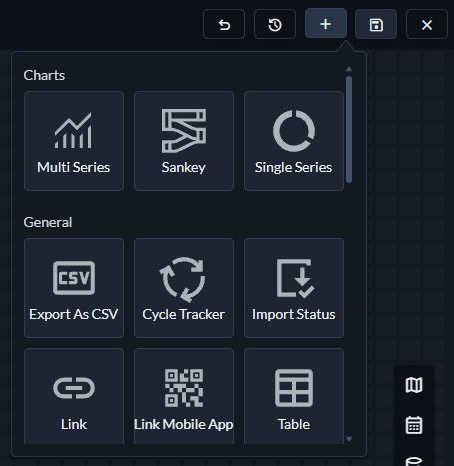
- Select Add widget using the plus icon. Under General, select Import Status.
- Click a spot on the dashboard grid to place the widget. Its settings open automatically. You can reopen them using the widget's gear icon while editing the dashboard.
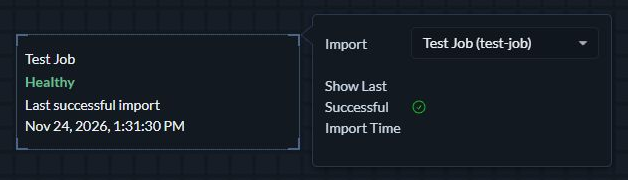
- In Import, select the integration job to display. Use Show last successful import time to include or hide the timestamp. It is on by default.
- Select Save changes in the dashboard toolbar to keep the widget and its settings.
Read the widget
The widget refreshes automatically while the dashboard is open. Last successful import shows when the most recent successful run finished. A dash means Hivekit has yet to receive a successful run for that import.
- Select a data import means the widget needs an import selected in its settings.
- Import status unavailable means Hivekit could not load health for the selected import. Check that you can open the import in Settings → Data Imports. If you cannot see it there, ask your app administrator to check your access and whether the import is still registered.
For run history, logs, and explanations of the health states, see Monitor and configure data imports.