Monitor and configure data imports
Use Data Imports in the Hivekit web app to check whether an integration is reporting activity, see when it last succeeded, and investigate a specific run. An import is a registered integration job. A run is one execution reported by that job.
You need read access to the import to see its health, runs, logs, and configuration. Changing configuration or monitoring requires update access to that import.
Find an import
- Open Settings using the menu icon on the right side of the app, then select Data Imports.
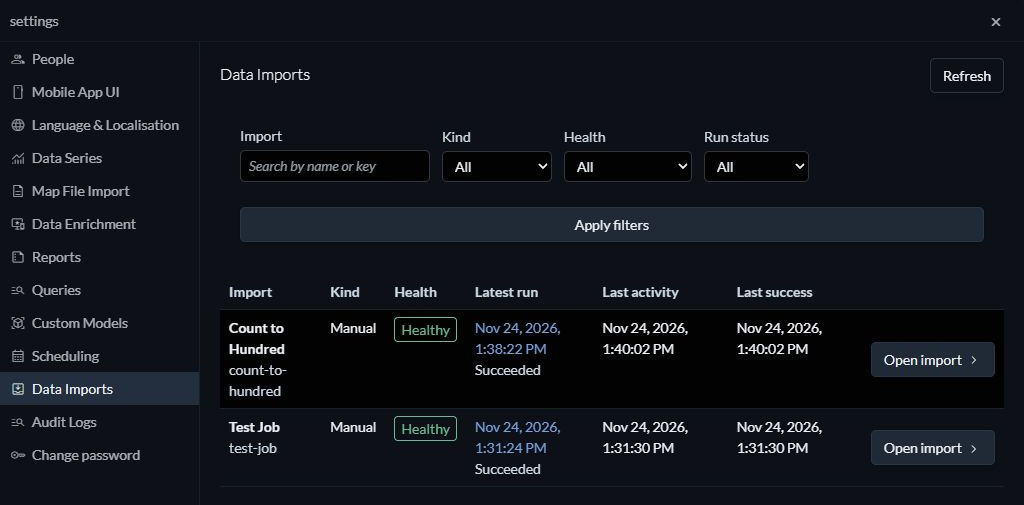
- Search by import name or key, or narrow the list by Kind, Health, or Run status. Select Apply filters to update the list.
- Check Last success to see when a run most recently finished successfully. Check Latest run for the start time and reported status of the most recent run, and Last activity for when that run last reported activity.
- Select Open import to see its Overview, Runs, and Configuration. To go straight to the latest run, select its timestamp in the list.
Read import health
The Overview tab shows the current health, the reason for that health, and any configured timing thresholds. Run status is the state the integration last reported for a run. It can be Running, Succeeded, or Failed. Health accounts for timing and monitoring. An import can be Overdue even when its latest run Succeeded, and a Stalled run can still show Running.
| Health | What it means |
|---|---|
| Healthy | The import is within its configured health thresholds. |
| Overdue | A scheduled import has passed its expected start time, including its grace period. |
| Stalled | A running continuous import has gone longer than its heartbeat timeout without reporting activity. |
| Timed out | A running import has exceeded its execution timeout. |
| Failed | The latest run reported a failure. |
| Stopped | The latest run of a continuous import has finished. |
| Never run | Hivekit has received no runs for the import. |
| Monitoring off | Health monitoring is turned off for this import. |
| Unknown | A timing setting needed to determine health is missing. |
Investigate a run
- Open the import and select Runs. Find the run by its start time and status, then select View run. If Hivekit received a failure summary, it appears beside the run status in the list. Select Load more to look further back in the run history.
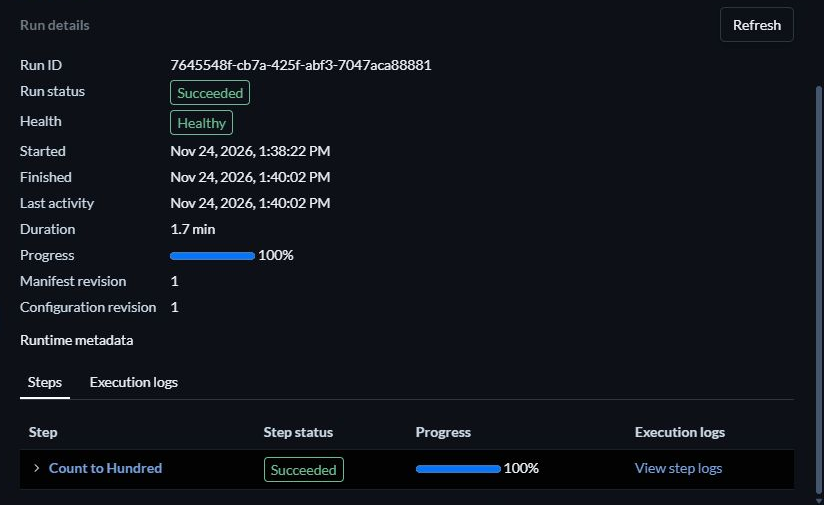
- In Run details, check the Run ID, status, progress, and Last activity. In Steps, look for the step that failed or stopped making progress. Select the arrow beside a step to see its timing and other details.
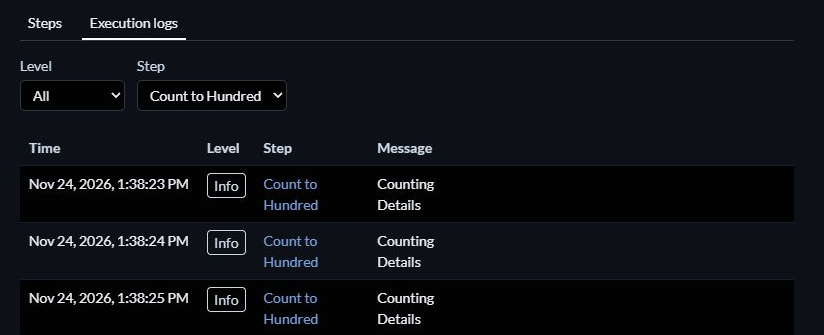
- Select View step logs to open Execution logs filtered to that step. Use the Level filter to look for Error or Warning messages. Set Step to All to include messages for the entire run.
- Expand Details on a relevant log entry for more context. Use Load more or Check for new logs when available. If you need help, share the import name, Run ID, affected step, and relevant log message with the integration owner or support.
Change import settings
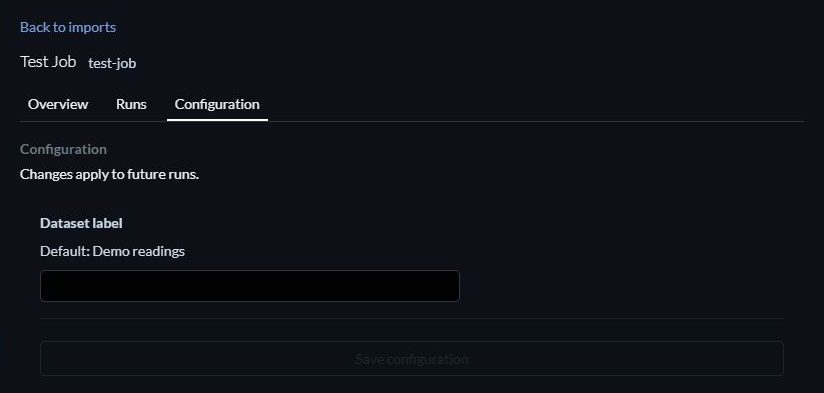
- Open the import and select Configuration. The available fields depend on the import. Missing required value identifies a setting that still needs a value.
- Edit the fields you need. To enter a new secret, select Replace and enter the new value. Hivekit displays whether a secret is Configured and keeps its stored value hidden.
- To remove a saved override, select Use default for a field with a default value. For other fields, select Clear. Select Undo to discard an unsaved change to a field.
- Select Save configuration and look for Configuration saved. Future runs use the new settings.
To change health monitoring, go to Overview and select Enable monitoring or Disable monitoring. This changes how Hivekit reports the import's health. The import process runs independently.
If you can't find an import
- If Data Imports is missing or you see a permission error, ask your app administrator to check your access to the import.
- If the list has no matches, clear the search, set the filters to All, and select Apply filters.
- If you see No runs have been reported, check with the integration owner when a run should first appear. If the panel is unavailable, ask your app administrator to check whether the deployment supports Data Imports.